Configuration and Logs
Eeny, meeny, miny, moe, what did break and where'd we go?
Special K keeps track of configuration parameters and their values (often called the 'profile') on a game-by-game basis and stores these in easily accessible and editable *.ini files that the user can double-click to edit directly in Notepad or another text editor of choice. The tool also logs relevant diagnostics data also on a game-by-game basis in logs\*.log files located below the game-specific configuration file(s).
<path-to-SpecialK>in the below tables refers to the installation folder of Special K, while<game-specific>refers to either the title of the game (Steam releases) or the executable filename of the game (other platforms).
Installation folder
All paths shown on the wiki can be assumed to be relative to the install folder of Special K unless specified to be relative to a local game-specific install. Special K is set up to store all of its global user data in or below its install folder, in particular global, profiles, macros, keybindings, and plugins related data.
Special K has used a few different install locations over the years, but it is usually one of the following:
| Type of install | Default Location |
|---|---|
| Modern (current user; non-elevated) | %LOCALAPPDATA%\Programs\Special K |
| Modern (all users; elevated) | %PROGRAMFILES%\Special K |
| Legacy | %USERPROFILE%\Documents\My Mods\SpecialK |
Configurations
Where the SK configuration for a game is stored depends on what type of install Special K is using to interface with the game.
| Type of install | Location |
|---|---|
| Global | <path-to-SpecialK>\Profiles\<game-specific>\SpecialK.ini |
| Local (converted from global / centralized profile) | <path-to-SpecialK>\Profiles\<game-specific>\<DLL-name>.ini |
| Local (manual / custom mod) | <path-to-game>\<DLL-name>.ini |
Some older game-specific mods use a separate
*.inifile to store the configuration for game-specific tweaks, such asFAR.inifor the FAR (Fix Automata Resolution) mod for NieR: Automata.
Configuration for some modules (e.g. achievements, macros, OSD, widgets) are stored in
<path-to-SpecialK>\Global\*.ini
Parameters
A full list of supported parameters and their description can be found in the source code.
Below is a table of what the tab-based columns of the source code correspond to.
| Column | Comment |
|---|---|
| 1 | Internal parameter name. |
| 2 | Description of what the parameter does. |
| 3 | Lists what configuration file the parameter resides in:
|
| 4 | Lists the section of said configuration file (e.g. [Input.Cursor]). |
| 5 | Lists the key for the parameter used in the configuration file (e.g. UseHardwareCursor ) |
Reset the config
If any default or master presets exists and are applicable for the type of install and injection method being used for the game, they will still be applied for the game until those relevant files are also removed.
The Special K config file for a game can be reset with either of the following methods:
- Method 1:
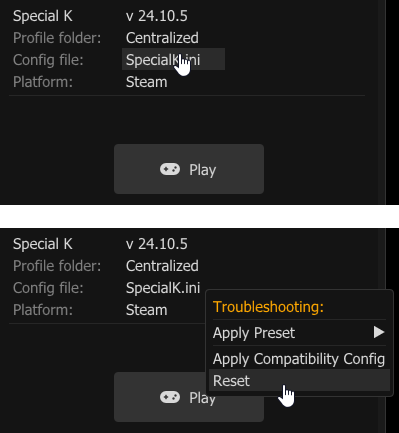
Open the Special K injection Frontend app, select your game from the list, right click on SpecialK.ini (it could also say DXGI.ini, D3D11.ini, OpenGL32.dll, D3D9.dll, or DInput8.dll...) and then press the Reset option.
- Method 2:
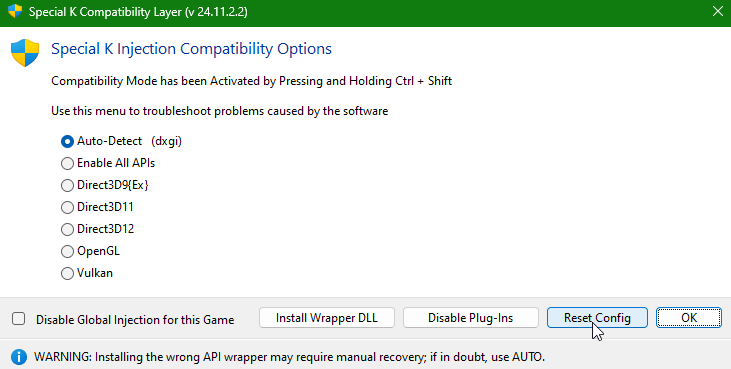
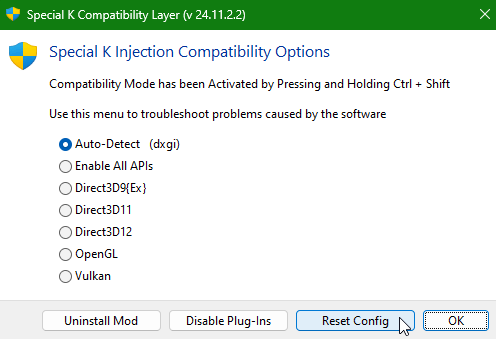
Hold down Ctrl + ⇧ Shift while launching the game (either from the Special K Injection Frontend app or from the Steam client etc) to open the Special K Compatibility Layer window and then press the Reset Config button.
The Special K Compatibility Layer window may look like one of the following:
- Method 3:
Close the game and delete the existing config file from the appropriate location:
(SpecialK.ini would the config file to delete if using global SK injection. If using local SK injection, the config file to delete may be dxgi.ini or some other based on the local SK dll file name)
| Type of install | Location |
|---|---|
| Global | <path-to-SpecialK>\Profiles\<game-specific>\SpecialK.ini |
| Local (converted from global / centralized profile) | <path-to-SpecialK>\Profiles\<game-specific>\<DLL-name>.ini |
| Local (manual / custom mod) | <path-to-game>\<DLL-name>.ini |
Custom userdata location
Since sometimes during the first half of 2022 the global injector of Special K automatically defaults to using relative paths based on the location of the SpecialK[32|64].dll DLL files to manage the global Special K settings and profile folders. Local injections, however, uses the registry key HKEY_CURRENT_USER\Software\Kaldaien\Special K and the Path value to identify where to look for and store the global configuration.
On 16 August, 2022 Special K received support for overridding the registry key for local injections if an environmental variable SPECIALK_PATH is set in the context that the game process gets launched in. This allows redirecting global settings on a game-by-game basis provided local injection is used.
Default presets
On October 25, 2020 Special K gained the ability to set default settings (either global or game-specific) using a default_<DLL-name>.ini that will automatically be applied the first time a game is launched or after resetting the Special K config for the game.
- Browse to the following location based on whether the default configuration should apply for all games or only one, and whether local or global injection is used:
| Type of Install | Location |
| --- | --- |
| All games | <path-to-SpecialK>\Global\ |
| Game-specific (global injection) | <path-to-SpecialK>\Profiles\<game-specific> |
| Game-specific (local injection) | <path-to-game> |
| Game-specific (local injection; converted from global / centralized profile) | <path-to-SpecialK>\Profiles\<game-specific> |
- Create a new file called
default_<DLL-name>.iniwhere<DLL-name>is replaced with the injection method the settings should apply for:
| Global injection: | <DLL-name> |
| -------------------- | ----------------- |
| Global injection | SpecialK |
| Local injection: | <DLL-name> |
| -------------------- | ----------------- |
| OpenGL | OpenGL32 |
| DirectX 12 | DXGI |
| DirectX 11 | DXGI or D3D11 |
| DirectX 9 | D3D9 |
| DirectX 8 | D3D8 |
| DirectDraw | DDRAW |
| DirectInput 8 | DInput8 |
- Add the desired parameters (along with the appropriate section headers) that you want applied on all games that uses said DLL filename.
The all games defaults are loaded first followed by the game-specific defaults if one exists. This allows the use of global defaults combined with specific overrides for those games that might need it.
The more parameters are being set, the more likely it is that things will break.
Master presets
Special K supports setting "master overrides" that enforces parameter values and overrides any automatically adjusted or user adjusted values. These can either be used to force a specific parameter value for a single game, or across all games. It is best to keep these as limited as possible, because of the aforementioned inability for the user to adjust the parameters unless they remove or edit the applicable master preset directly.
Shared
Shared master settings overrides any and all unique game-specific configurations that may otherwise be set, including those set by any default or game-specific master presets that might exist. Use at your own risk!
On June 13, 2020 Special K gained the ability to set master settings using master_<DLL-name>.ini that will automatically be applied for all games, always.
-
Browse to
<path-to-SpecialK>\Global\ -
Create a new file called
master_<DLL-name>.iniwhere<DLL-name>is replaced with the name of the DLL the settings should be used for:
| Should apply for | <DLL-name> |
| -------------------- | ----------------- |
| Global injection | SpecialK |
| OpenGL | OpenGL32 |
| DirectX 12 | DXGI |
| DirectX 11 | DXGI or D3D11 |
| DirectX 9 | D3D9 |
| DirectX 8 | D3D8 |
| DirectDraw | DDRAW |
| DirectInput 8 | DInput8 |
- Add the desired parameters (along with the appropriate section headers) that you want applied on all games that uses said DLL filename.
The more parameters are being set, the more likely it is that things will break.
Game-specific
- Browse to the following location based whether the local injection is using a centralized profile or not :
| Type of Install | Location |
| --- | --- |
| Game-specific (global injection) | <path-to-SpecialK>\Profiles\<game-specific> |
| Game-specific (local injection) | <path-to-game> |
| Game-specific (local injection; converted from global / centralized profile) | <path-to-SpecialK>\Profiles\<game-specific> |
- Create a new file called
custom_<DLL-name>.iniwhere<DLL-name>is replaced with the name of the DLL the settings should be used for:
| Should apply for | <DLL-name> |
| -------------------- | ----------------- |
| Global injection | SpecialK |
| OpenGL | OpenGL32 |
| DirectX 12 | DXGI |
| DirectX 11 | DXGI or D3D11 |
| DirectX 9 | D3D9 |
| DirectX 8 | D3D8 |
| DirectDraw | DDRAW |
| DirectInput 8 | DInput8 |
- Add the desired parameters (along with the appropriate section headers) that you want to forcefully apply for the game on each launch.
Noteable global settings
Special K settings can be set on a global scale as described in Master presets; below is a non-exhaustive list of notable settings to use this way.
Please note that there are also settings described here that are global by default.
MPO support check
This setting warns you when multiplane overlay support isn't working on your system.
[Display.Monitor]
WarnIfNoOverlayPlanes=true
Add this to your master_SpecialK.ini as described in Master presets to use it in all games.
Minimize audio latency
This setting descreases the default 10ms audio buffer to the lowest your hardware supports.
Using this requires a special audio driver, see Low Latency Audio for more information.
[Sound.Mixing]
MinimizeLatency=true
Add this to your master_SpecialK.ini as described in Master presets to use it in all games.
Disable crash sound
This setting lets you disable Special K's iconic sound when a game crashes.
[SpecialK.System]
NoCrashSound=true
Add this to your master_SpecialK.ini as described in Master presets to use it in all games.
Custom screenshot path
This setting lets you set a custom path for screenshots captured with Special K and is stored in <path-to-SpecialK>\Global\osd.ini.
[Screenshot.System]
OverridePath=
Important: The path must exist, or Special K will use the default per-profile path.
Auto-load updated DLSS DLL
This can be done from the DLSS Control Panel, or can be done manually
This option lets you auto-load an updated DLSS DLL from SK's Plug-In Directory.
-
Create the directory:
SpecialK\PlugIns\ThirdParty\NVIDIA -
Place an updated version of
nvngx_dlss.dllthere -
Set the following in
SpecialK.ini:
[NVIDIA.DLSS]
AutoRedirectDLL=true
If you want this by default, you can set it in default_SpecialK.ini, as described in Default Presets, after setting up the correct file location.
Please be aware that doing this in multiplayer titles (e.g. Diablo 4) could have you run into issues if the game treats any DLL replacement as a sign of tampering.
Console commands
| Command | Function |
|---|---|
ImGui.Visible ~ |
Toggles Special K's Control Panel. You can also set it explicitly true or false. Press Caps Lock or hold the Back/Select button on a gamepad to have it capture keyboard or gamepad input. |
TargetFPS *** |
Sets the FPS limiter to the specified target FPS (replace the asterisks with a number) |
TargetFPS ++TargetFPS -- |
Increases or decreases the FPS limiter |
TargetFPS ~ |
Toggles the FPS limiter |
BackgroundFPS *** |
Sets the background FPS limiter to the specified FPS (replace the asterisks with a number) |
BackgroundFPS ++BackgroundFPS -- |
Increases or decreases the background FPS limiter |
Window.BackgroundRender toggle |
Toggles the 'Continue Rendering' option, which may keep the game rendering in the background (may keep gamepad input in the game) |
Window.BackgroundMute toggle |
Toggles the 'Mute Game' (audio) option for when the game is rendering in the background |
Window.Center toggle |
Toggles the 'Center' option to center the game's window |
Window.Borderless toggle |
Toggles the 'Borderless' option for the game's window |
Window.Fullscreen toggle |
Toggles the 'Fullscreen Borderless' option for the game's window (requires using the Borderless option first) |
Window.ConfineCursor toggle |
Toggles the option to keep the mouse cursor inside the game's window |
Window.UnconfineCursor toggle |
Toggles the option to unrestrict the mouse cursor so that it may go outside the game's window |
Input.Mouse.DisableToGame toggle |
Toggles mouse input for the game |
Input.Keyboard.DisableToGame toggle |
Toggles keyboard input for the game |
Input.Gamepad.DisableToGame toggle |
Toggles gamepad input for the game |
HDR.Visualization ++HDR.Visualization -- |
Iterates through the available HDR visualizations |
HDR.AdaptiveToneMap toggle |
Toggles the HDR 'Adaptive Tone Mapping' option |
HDR.Bypass_sRGB * |
Enables or disables HDR Bypass sRGB Gamma (replace the asterisk with the number 1 to enable it or 0 to disable it) |
HDR.Enable * |
Enables the scRGB HDR option (replace the asterisk with the word false to disable HDR or true to enable scRGB HDR — may still need a game restart) |
HDR.EnableHDR10 toggle |
Toggles the HDR10 option (may still need a game restart) |
HDR.EnableSCRGB toggle |
Toggles the scRGB HDR option (may still need a game restart) |
macros.ini
Macros can be set up to issue command consoles using custom keybindings through a global configuration file.
-
Open
<path-to-SpecialK>\Global\macros.ini -
Add a new section like the below to the file:
[Macro.RelevantNameOfYourChoice] <modifier-key>+<regular-key>=Console-command-to-execute -
Customize the section to your liking and any add desired keybindings for console commands.
- For an example, see the built-in
Macro.SpecialK_OSD_Togglessection:
[Macro.SpecialK_OSD_Toggles] Ctrl+Shift+O=OSD.Show toggle Ctrl+Shift+M=OSD.Memory.Show toggle Ctrl+Shift+T=OSD.Clock.Show toggle Ctrl+Shift+I=OSD.IOPS.Show toggle Ctrl+Shift+F=OSD.FPS.Show toggle Ctrl+Shift+G=OSD.GPU.Show toggle Ctrl+Shift+R=OSD.Shaders.Show toggle Ctrl+Alt+Shift+D=OSD.Disk.Show toggle Ctrl+Alt+Shift+P=OSD.Pagefile.Show toggle Ctrl+Alt+Shift+S=OSD.SLI.Show toggle Ctrl+Shift+C=OSD.CPU.Show toggle - For an example, see the built-in
Alternatively, you could also have macros in a game specific configuration file (such as in a SpecialK.ini or in a dxgi.ini).
Logs
Log files are located in one of the following locations, based on the type of install of Special K being used:
| Type of install | Location |
|---|---|
| Global | <path-to-SpecialK>\Profiles\<game-specific>\logs\*.log |
| Local (converted from global / centralized profile) | <path-to-SpecialK>\Profiles\<game-specific>\logs\*.log |
| Local (manual / custom mod) | <path-to-game>\logs\*.log |
The crash handler of Special K will move all logs related to a crash to a time-specific
<path-to-game>\logs\crash\<timestamp>\*.logfolder if it manages to capture data about the crash.
List of log files and what they capture
Important log files are marked as such.
| Log file | Purpose |
|---|---|
crash.log |
Stores captured crash data if the crash handler of Special K were able to capture data related to the crash. |
SpecialK.log or <DLL-name>.log |
(Important) Main log file for Special K, stores injection, render pipeline, and other related events. |
dxgi_budget.log |
Stores aggregated DXGI memory statistics over the play session at the time of shutdown. |
game_output.log |
Stores everything the game outputs to the standard output stream of the operating system. |
modules.log |
(Important) Stores detected loaded/injected DLL files of the game. Note that tools or applications using more obscure ways of injecting themselves to avoid detection will not listed in this log file. |
ReShade.log |
If used, stores logs related to the custom ReShade plug-in of Special K. |
steam_api.log |
Stores logs related to the Steam API and enhancements. |
Keybindings
The below sections details general keybindings and functionality not related to a specific topic covered elsewhere on the wiki. For keybindings related to e.g. audio management, see the Audio page.
Basic
| Keybinding | Function |
|---|---|
| Keyboard: Ctrl + ⇧ Shift + ← Backspace Controller: Back / Select + Start |
Toggle Control Panel |
| Ctrl + ⇧ Shift + O | Toggle On Screen Display (OSD), might require a game restart |
| Hold Ctrl + ⇧ Shift while launching the game | Opens the Injection Compatibility Options |
Control Panel
Unless otherwise noted, W/A/S/D can substitute the arrow keys.
| Keybinding | Function |
|---|---|
| Keyboard: ⇪ Caps Lock Controller: Hold Back / Select for 0.5 seconds |
Toggle Exclusive Input Mode (game vs. control panel) |
| Keyboard: ↑, ↓, ←, → Controller: ↑, ↓, ←, → |
Cycle Through UI Items |
| Keyboard: ↵ Enter Controller: A / × |
Activate Selected Item |
| Keyboard: Ctrl + ⇧ Shift + ← Backspace Controller: B / ○ |
Exit Menu |
| Exclusive Keyboard Mode: Ctrl + Alt + ↑, ↓, ←, → Controller: X / □ + Left Analog Stick |
Move the Control Panel |
On-Screen Display (OSD)
- Color and scale configs are stored in
<path-to-SpecialK>\Global\osd.ini - Keybindings can be changed through
<path-to-SpecialK>\Global\macros.ini
| Keybinding | Function |
|---|---|
| Ctrl + ⇧ Shift + O | Toggle On Screen Display (OSD) |
| Ctrl + ⇧ Shift + + / - | Resize |
| Ctrl + ⇧ Shift + F | Toggle Framerate Counter |
| Ctrl + ⇧ Shift + T | Toggle Clock / Version |
| Ctrl + ⇧ Shift + G | Toggle GPU Monitor |
| Ctrl + ⇧ Shift + C | Toggle CPU Monitor |
| Ctrl + ⇧ Shift + M | Toggle Memory Monitor |
| Ctrl + ⇧ Shift + I | Toggle I/O Monitor |
| Ctrl + ⇧ Shift + Alt + D | Toggle Disk Monitor |
| Ctrl + ⇧ Shift + Alt + P | Toggle Page File Monitor |
| Ctrl + ⇧ Shift + R | Toggle D3D11 Shader Analytics |
Advanced
| Keybinding | Function | Comment |
|---|---|---|
| Ctrl + ⇧ Shift + Tab ↹ | Command Console | See documentation for commands |