Video
Borderless mode has more synonyms for it than anything else in the gaming space
Special K features multiple options to control the behavior of the swapchain of a game, the window it renders inside of, as well as aspects related to exclusive fullscreen such as refresh rate, scan type, etc.
Compatibility for features varies for games; most usually works, but at times a game might not function properly with some. Hold down Ctrl + ⇧ Shift while launching a game if you need to reset the config file of Special K.
Key features
High dynamic range (HDR)
Special K allows for retrofitting HDR in many DirectX 11 (Direct3D 11) based titles and supports remastering 8-bit, 10-bit, and 11-bit render passes, as well as visualize the result in various ways to allow more detailed inspection.
The wiki has a whole chapter on the specifics of HDR worth checking out, as well as a remastering database of verified titles.
Nvidia Reflex
For the best result pair Nvidia Reflex with flip model with recommended swapchain settings !
Special K allows users with Nvidia hardware to enable Nvidia Reflex in any compatible game (DirectX 11 and 12), which can decrease total frame time and input latency to a (for some) noticeable degree, even in many singleplayer titles.
- Launch the game with Special K enabled.
- Press Ctrl + ⇧ Shift + ← Backspace to open the control panel of Special K.
- In the Framerate Limiter section, click on the ▶ Advanced text in the bottom right corner below the frame pacing graph.
- In the NVIDIA Driver Black Magic section that opens, set NVIDIA Reflex Mode to the desired mode:
Offdisables Nvidia Reflex.Low Latencyengages Nvidia's FPS limiter which caps the framerate a few frames below the refresh rate (this is important for VRR users, see Blur Buster's G-Sync 101).Low Latency + Boostalso engages the maximum performance power mode, which prevents the graphic card from clocking down the frequency of the GPU core while the game is running.Nothing But Boostonly engages the maximum performance power mode.
- Set the NVIDIA Reflex Trigger Point to the trigger point which results in the lowest total frame time as reported in the statistics below.
- Most games are served best with the
Start-of-Framesetting. - Use
Input Hookto allow Nvidia Reflex to trigger based on the input. This is most effective when using a gamepad.
- Most games are served best with the
- For even better result, enable Special K's
Framerate Limitand configure a value below any FPS cap enforced by Nvidia Reflex (Ctrl + 🖱️ Click to type in an exact value). - Press Ctrl + ⇧ Shift + ← Backspace to close the control panel of Special K.
Frame rate limiter
Special K features a high-end frame rate limiter that when used can improving frame pacing and timing consistency compared to many other frame rate limiters.
-
Launch the game with Special K enabled.
-
Press Ctrl + ⇧ Shift + ← Backspace to open the control panel of Special K.
-
In the Framerate Limiter section, enable
Framerate Limitand configure a desired value (Ctrl + 🖱️ Click to type in an exact value). -
Press Ctrl + ⇧ Shift + ← Backspace to close the control panel of Special K.
-
(Optional) Clicking on Advanced to the right side of the Framerate Limit slider exposes in-depth configuration of the limiter:
Use Multimedia Class Schedulingenables MCMCSS to ensure the limiter receives prioritized access to CPU resources.
Flip model presentation
Special K supports forcing flip model presentation for games using DirectX 11, but compatibility may vary.
Flip model is a presentation model designed to make windowed mode effectively equivalent or better when compared to the classic "fullscreen exclusive" mode. Windows 10's fullscreen optimizations (FSO) for DirectX 9-11 tries to automatically convert some games configured to use "fullscreen exclusive" mode into using flip model presentation in a maximized borderless window instead.
Flip model presentation also allows the use of variable refresh rate (VRR, G-Sync, FreeSync, VESA Adaptive-Sync, HDMI 2.1 VRR) in borderless maximized windows even without the display driver configured to allow VRR in windowed mode.
- Install Special K for the game, either globally or locally.
- Launch the game.
- Configure the in-game options to borderless fullscreen windowed mode (it is often called just borderless mode ).
- See Borderless fullscreen window mode for how to force borderless fullscreen windowed mode for games without native support for it.
- Restart the game and verify that the borderless fullscreen windowed mode works as expected.
- Press Ctrl + ⇧ Shift + ← Backspace to open the control panel of Special K.
- Expand the Direct3D 11 Settings section and the subsection called SwapChain Management.
- Enable
Use Flip Model Presentation. - Close the control panel and then restart the game to confirm everything works.
- If everything works the popup shown while hovering over Window/Fullscreen Resolution at the top of the Special K control panel should show Discard (flip).
- If the game does not launch properly, open the game-specific config and change
UseFlipDiscardto false.
- Frame latency might be further improved by configuring the parameters in the SwapChain Management section according to the recommended settings based on your personal use case.
- Restart the game again to verify that the changes were successful
Monitor
Disable native HDR of games
Special K can forcefully disable HDR in games that otherwise do not expose in-game options for controlling HDR.
- Install Special K for the game, either globally or locally.
- Launch and close the game once to allow the Special K config file to be created.
- Open the game-specific config.
- Set the following parameters to
true
- Disables DXGI based HDR
[Render.DXGI]
HideHDRSupport=true
- Disables NVAPI based HDR
[NVIDIA.API]
DisableHDR=true
Exclusive fullscreen mode
Forces the game to run in an exclusive fullscreen mode for games that do not natively support it.
-
Launch the game with Special K enabled and confirmed working for the game.
-
Configure the in-game options to the resolution of the monitor.
-
Press Ctrl + ⇧ Shift + ← Backspace to open the control panel of Special K.
-
Open the Display menu on the top.
-
Change Window style to
Fullscreen Mode.- The
Force Overrideoption might be required as well for some titles and automatically applying the override on next launch.
- The
-
Restart the game to confirm everything works.
- See Lock the mouse to the game if the cursor is not locked to the game window.
Refresh rate (Hz)
Forces a custom refresh rate. In some games this can even override refresh rate behavior forced through the display drivers.
-
Install Special K for the game, either globally or locally.
-
Launch and close the game once to allow the Special K config file to be created.
-
Open the game-specific config.
-
Find and change the parameter
RefreshRateto the desired refresh rate (e.g.RefreshRate=120). -
Save and close the file.
RefreshRate=0will automatically use the highest available refresh rate.RefreshRate=-1will disable the override and use whatever the game requests.
Scan type (i/p)
Controls if the game outputs in progressive or interlaced scanning. This is normally more relevant for a television than a computer monitor, as typically computer monitors only support progressive display modes.
This override should only be used if the game does not properly output to the correct scan mode.
- Install Special K for the game, either globally or locally.
- Launch and close the game once to allow the Special K config file to be created.
- Open the game-specific config.
- Find and change the parameter
ScanlineOrderto one of the below values:Progressivefor progressive scan.UpperFieldFirstfor interlaced even scan.LowerFieldFirstfor interlaced odd scan.DontCareto retain the game default.
- Save and close the file.
Vertical sync (Vsync)
Forces a specific vertical sync behavior. Note that this does not override v-sync behavior forced through the display drivers.
- Install Special K for the game, either globally or locally.
- Launch and close the game once to allow the Special K config file to be created.
- Open the game-specific config.
- Find and change the parameter
PresentationIntervalto the desired vertical sync behavior:-1- Disable the override; use the default behavior of the game.0- Disable vertical sync. This also enables Latent Sync.1- Vertical sync occurs each refresh cycle (e.g. 60 FPS on a 60 Hz monitor; or 144 FPS on a 144 Hz monitor).2- Vertical sync occurs every second refresh cycle (e.g. 30 FPS on a 60 Hz monitor; or 72 FPS on a 144 Hz monitor).3- Vertical sync occurs every third refresh cycle (e.g. 20 FPS on a 60 Hz monitor; or 48 FPS on a 144 Hz monitor).
- Save and close the file.
Latent Sync
Latent Sync is a tear-free no-sync feature similar to the Scanline Sync of RTSS and offers the same or lower input latency to that of VRR. It is useful in scenarios for when your frame rate needs to be identical to the refresh rate (e.g. 60 FPS on a 60 Hz display), a factor thereof (e.g. 60 FPS on a 120 Hz display), or in scenarios where VRR is not available.
It is a two-phase limiter which waits before and after the Present call of a game, and CPU idle time is distributed between waiting for the Vertical Blanking period (favors tearing stability) and delaying the beginning of the next frame (favors input latency). The Delay Bias option in Special K's control panel controls this behavior, and while the setting defaults to 0% (favors tearing stability with no regard for the input), it can be adjusted to favor input latency at the risk of potentially introducing occasional tearing. It is by adjusting this bias in favor of input latency that Latent Sync can beat the input latency of VRR.
The limiter predicts how long the game's simulation is going to take as well as any overhead observed during Present calls (third-party overlays hook Present and contribute to timing variability, which Latent Sync factors).
To enable Latent Sync in Special K, do the following:
-
Launch the game with Special K enabled and confirmed working for the game.
-
Press Ctrl + ⇧ Shift + ← Backspace to open the control panel of Special K.
-
Right click the frame rate value/slider to open the Latent Sync config popup.
-
Tick the
Latent Syncbox to force vertical sync off in Special K which enables the feature. -
The feature is now enabled and can be configured using the same popup window.
-
Enable
Visualize Tearlinesto show four vertical bars that switches color on each frame. This will assist in visualizing the tearline (a section of the bar where multiple clashing colors appear at the same time) and how it changes as the other settings are adjusted. -
Adjust the settings to move the tearline beyond the edges of the screen so the bars no longer have a tearline visible on them.
-
Ensure that the presentation model used by the game is hardware accelerated (
Hardware:shown in front). -
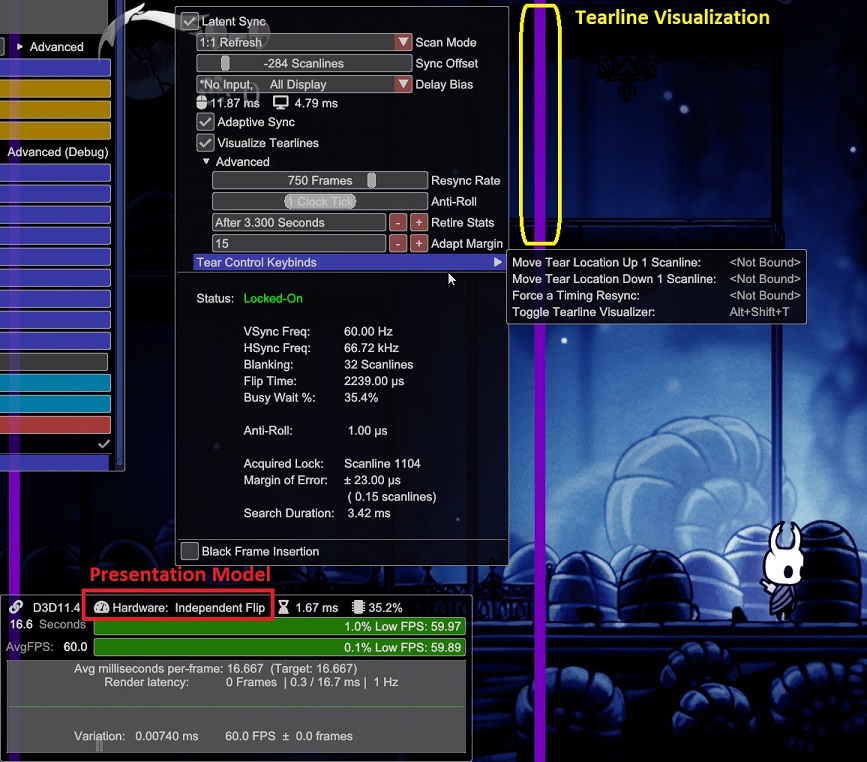
-
Resolution
Limit resolution
DirectX 11 (Direct3D 11) games only.
Special K can limit the minimum and maximum reported resolution to a game. In some games this can be used to override the resolution to one not supported by the game, or work around resolution related issues.
-
Launch the game with Special K enabled and confirmed working for the game.
-
Press Ctrl + ⇧ Shift + ← Backspace to open the control panel of Special K.
-
Expand DirectX 11 Settings > Resolution Limiting.
-
Change
Minimum/Maximum Resolutionto the desired resolution(s). -
Restart the game to evaluate whether the resolution limiting is effective or not.
- Remove the resolution limit by changing the
Minimum/Maximum Resolutionvalues to 0, followed by a game restart.
- Remove the resolution limit by changing the
Override resolution
Overrides the framebuffer resolution in windowed modes, forcing games to render at a higher resolution than what they might natively support.
- Launch the game with Special K enabled and confirmed working for the game.
- Configure the in-game options to window mode.
- See Window mode for how to force window mode for games that do not expose it.
-
Press Ctrl + ⇧ Shift + ← Backspace to open the control panel of Special K.
-
Expand Window Management > Style and Position.
-
Enable
BorderlessandCenter.- Do not enable Fullscreen (Borderless Upscale) as this will disable the override resolution.
-
Change
Override Resolutionto the desired resolution. -
Restart the game to confirm everything works.
- See Lock the mouse to the game if the cursor is not locked to the game window.
- Remove the override resolution by changing the
Override Resolutionvalues to0, followed by a game restart.
Window
Borderless fullscreen window mode
Forces a borderless fullscreen window mode for games that do not natively support it.
-
Launch the game with Special K enabled and confirmed working for the game.
-
Configure the in-game options to window mode and the resolution of the monitor.
- See Window mode for how to force window mode for games that do not expose it.
-
Press Ctrl + ⇧ Shift + ← Backspace to open the control panel of Special K.
-
Open the Display menu on the top.
-
Change Window style to
Borderless Fullscreen.- If the option does not appear, select
Borderlessinstead and then re-open the menu and the option should be present. - The
Force Overrideoption might be required as well for some titles and automatically applying the override on next launch.
- If the option does not appear, select
-
Restart the game to confirm everything works.
- See Lock the mouse to the game if the cursor is not locked to the game window.
Continue rendering when out of focus
Keep in mind that having
Steam Inputenabled for the game is known to prevent theContinue Renderingoption from working properly. It's recommended to disable Steam Input for the game in the Steam client.
This option prevents games from realizing they are unfocused, preventing them from pausing the game, muting the audio, minimizing themselves, or other behaviours that they typically do when they lose focus.
- Launch the game with Special K enabled.
- Press Ctrl + ⇧ Shift + ← Backspace to open the control panel of Special K.
- Expand Window Management > Input/Output Behavior.
- Enable
Continue Rendering. - Press Ctrl + ⇧ Shift + ← Backspace to close the control panel of Special K.
Window layering (always/multitasking-on-top)
Special K can also force a certain window layer state for the game. This refers to whether the game window should appear above other windows, or below.
- Launch the game with Special K enabled and confirmed working for the game.
- Press Ctrl + ⇧ Shift + ← Backspace to open the control panel of Special K.
- Expand Window Management > Style and Position.
- Change Window Layering at the bottom of the section to the desired behaviour:
| Mode | Description |
|---|---|
No Preference |
Do not override the default window layering behaviour of the game. (default) |
Prevent Always-On-Top |
Prevents the game window from always staying on top of other windows. This is intended to be used with games that otherwise forces an always-on-top state, and allows the use of third-party window based overlays in games that otherwise would have appeared always above them. |
Force Always-On-Top |
Always forces the game window to always stay on top of other windows. This is not optimal if you multitask as Special K will continue to move the game window above all other applications/windows you try to switch to until this mode has been disabled. |
Multitasking-On-Top |
This is a custom behaviour mode of Special K where the game window will automatically move above and below other windows depending on various scenarios.
|
Window mode
Forces a window mode for games that do not natively support it.
-
Launch the game with Special K enabled and confirmed working for the game.
-
Press Ctrl + ⇧ Shift + ← Backspace to open the control panel of Special K.
-
Open the Display menu on the top.
-
Change Fullscreen Mode to
Windowed Mode.- The
Force Overrideoption might be required as well for some titles and automatically applying the override on next launch.
- The
-
Restart the game to confirm everything works.
- See Lock the mouse to the game if the cursor is not locked to the game window.