Getting started
So convenient and powerful — with a flare for the dramatic!
The frontend app of Special K adds its functionality in all supported games launched from the app, and detects installed games from Epic, GOG, Steam, and Xbox automatically. This feature is sometimes referred to as the "global" or "system-wide" injection method, and is the recommended method to use due to its high compatibility and ease of use.
- There is also a more advanced option available, a so called "local" install, where Special K's wrapper files are manually installed to the game folder of a single game, removing the need of the frontend app. Please note though that compatibility is often lower with the local method and so is not often recommended for beginners.
Installation
-
Start by downloading the latest stable version which gets updated every couple of months.
-
Run
SpecialK.exeto install Special K. -
Launch Special K at the end of the installation or through the start menu of Windows. This is the Special K Injection Frontend app (or SKIF for short). It allows you to easily inject Special K into various games simply by launching the game through the app.
- If you want to opt in to the latest experimental version you can do so from within the app as well:
- Open the ⚙ Settings tab.
- Change Check for updates to Special K to
Discord (updates regularly). - If there’s a new version available it will automatically be downloaded (~10 MB) in the background and indicated by a flashing 🔃 symbol in the bottom right corner. Once the download is finished, SKIF will prompt about installing it.
- If you want to opt in to the latest experimental version you can do so from within the app as well:
-
Navigate to the Library tab of the application to see detected games.
-
SKIF detects and lists Epic, GOG, Steam, and Xbox games automatically.
-
Use the
+ Add Gameoption in the bottom left corner to add custom games.
-
-
Select and launch the game through the application. SKIF will automatically start the injection service, launch the game, and finally stop the injection service once it detects that a game has been injected.
-
Important: For games requiring elevated privileges (admin rights) enable X Elevated Service (Beta).
-
After launching a game in SKIF, a green label stating
Waiting for game...will appear to the right of the injection strategy. This indicates the service is currently running and is waiting for a game to be injected. After the game has been injected this label will go away, indicating the service have successfully stopped and is no longer running. -
By default a startup banner will be shown for 20 seconds on top of the game after a successful injection. This can be disabled in the in-game control panel below the On Screen Display (OSD) panel (called Show Startup Banner).
-
-
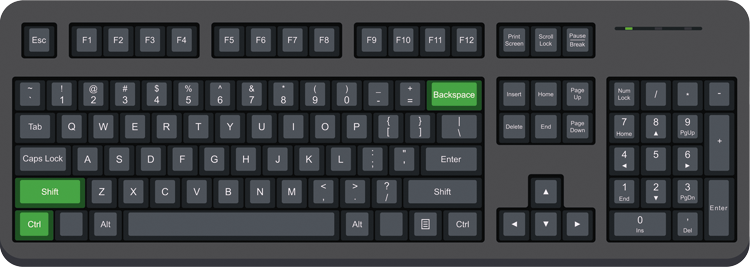
Use Ctrl + ⇧ Shift + ← Backspace to access the control panel while in-game.
Close Special K before playing a multiplayer game where anti-cheat protection might be present!
The frontend app is a D3D11-based application and may be mistaken for a game by overlay software
You may need to add exceptions for
SKIF.exeto keep overlays (e.g. RTSS) from drawing over it or crashing; SKIF renders in ways they are not designed to handle!
Multiplayer games
Special K is not recommended to be used while playing a multiplayer game as the game may take issues with Special K or its injection service!
Newer versions of Special K and its frontend SKIF automatically manages the injection service and by default stops it on a successful injection as well as when the frontend app (SKIF) is closed. This means that the user just needs to ensure that the Special K Injection Frontend (SKIF) app is not running in the background when the user is starting a multiplayer game.
Click to reveal why this is the case!
A common misconception is that the injection service only injects Special K into games — it doesn't! The service injects Special K into any process that deals with system input or some sort of window or keyboard/mouse input activity, which is like most processes on the system... Special K will then attempt to match the process it finds itself to a whitelisted or blacklisted entry, and then either initializes itself (hooks graphics and input APIs, etc) or remains inert and idle until the process is terminated or the injection service is stopped.-
Depending on how the anti-cheat protection of a game is configured, the sole presence of Special K, even though it is inert and idle, might be enough for some devs to call foul and flag the player. Therefor it is better to not leave the injection service running while playing a multiplayer game.
-
Even more information about why this is the case can be found in the Technical info section at the bottom!
Enable for other games
There are three methods for whitelisting an executable:
- Creating a new entry in SKIF's Library (recommended).
- Modifying the global
whitelist.inifile. - Creating a new
SpecialK.<API>file in the target folder.
Tabs
+ Add Game (recommended)
-
Start Special K Injection Frontend (SKIF).
-
Use the + Add Game option at the bottom left corner of the application window to add a game to the app library.
- Click Browse... and select the executable (.exe) or shortcut (.lnk) of the game you want to add.
- Click Add Game.
-
The game is now part of the 🎮 Library tab, select it in the list and click Launch.
-
Use Ctrl + ⇧ Shift + ← Backspace to access the control panel while in-game.
-
(optional) Add custom artwork by right-clicking on the left side of SKIF and select
Set Custom Artwork.
whitelist.ini
-
Start Special K Injection Frontend (SKIF).
-
Open the ⚙ Settings tab.
-
Towards the bottom there's a section called Whitelist Patterns.
-
Write the filename of the game executable, or the folder name of the game, to a new line in the field.
- The list supports 16 lines at most, but multiple entries can combined into one line by separating the entries using
|as a delimiter - For example,
Origin|NieRAutomataPC|Gameswill match any game installed below a folder calledOrigin,NieRAutomataPC, orGames.
- The list supports 16 lines at most, but multiple entries can combined into one line by separating the entries using
-
Click Save Changes to save the changes to
whitelist.ini. -
Now launch the game through one of the following alternative methods:
- Launch the game through the 🎮 Library tab, or
- Start the service manually by selecting Special K in the 🎮 Library tab and clicking the Service button, then launch the game the regular way.
-
Special K should now detect its presence on the whitelist and enable its functionality.
-
Use Ctrl + ⇧ Shift + ← Backspace to access the control panel while in-game.
Add the name of a shared parent folder to the whitelist to enable Special K for all games located within that folder. For example, adding
EA Gameson its own line to the file will allow global injection for all games installed through the EA Desktop application.
Advanced:
whitelist.inimakes use of regular expressions (regexp) so more advanced patterns are supported. The actual file is stored below theGlobalfolder in the installation folder of Special K.
Special K monitors
whitelist.iniandblacklist.inifor changes and will adjust without starting/stopping injection.
SpecialK.<API>
- Start the global injector.
- Navigate to
<path-to-game>and the appropriate subfolder containing the game executable. - Look up what API the game makes use of over on PCGamingWiki by searching for the article of the game and scrolling down to the bottom of the page where an "API" section resides.
- Create a new empty file based on what API the game uses out of these:
- OpenGL:
SpecialK.OpenGL32 - DirectX 12:
SpecialK.dxgiorSpecialK.d3d12 - DirectX 11.x:
SpecialK.dxgiorSpecialK.d3d11 - DirectX 9:
SpecialK.d3d9 - DirectX 8:
SpecialK.d3d8- Requires the dgVoodoo plugin installed for Special K. - DirectDraw:
SpecialK.ddraw- Requires the dgVoodoo plugin installed for Special K. - DirectInput 8:
SpecialK.DInput8- Alternative injection method for titles that supports DirectInput 8.
- OpenGL:
- Launch the game. Special K will now detect its presence on the whitelist and enable its functionality.
- Use Ctrl + ⇧ Shift + ← Backspace to access the control panel while in-game.
Disable for specific executables
These instructions only applies for global injection. Local injection works differently and requires removal of the local wrapper DLL file!
If Special K is found to cause issues for a specific executable (typically launchers) in otherwise whitelisted locations, it can be disabled for that specific executable while leaving other whitelisted executables enabled. Please note that Special K's DLL files will still be injected into the process — it just won't initialize its core functionality. To be clear, this excludes specific executables from any existing whitelist pattern, so processes that are not whitelisted will not be affected by the below steps as they are in essence already blacklisted.
There are three methods for blacklisting an executable:
- Use the Injection Compatibility Options menu (recommended).
- Modifying the global
blacklist.inifile. - Creating a new
SpecialK.deny.<executable_name>file in the relevant folder.
Tabs
Injection Compatibility Options (recommended)
- Hold down Ctrl + ⇧ Shift.
- Start the executable in question.
- A window titled Special K Injection Compatibility Options should appear.
- Click on Disable Global Injection for this Game.
blacklist.ini
-
Start Special K Injection Frontend (SKIF).
-
Open the ⚙ Settings tab.
-
Towards the bottom there's a section called Blacklist Patterns.
-
Write the filename of the executable, or the folder name of the executable, to a new line in the field.
- The list supports 16 lines at most, but multiple entries can combined into one line by separating the entries using
|as a delimiter - For example,
Origin|NieRAutomataPC|Gameswill match any game installed below a folder calledOrigin,NieRAutomataPC, orGames.
- The list supports 16 lines at most, but multiple entries can combined into one line by separating the entries using
-
Click Save Changes to save the changes to
blacklist.ini.
Add the name of a shared executable to
blacklist.inito disable Special K for all processes with that specific name. For example, addingcrashpad_handleron its own line to the file will disable Special K for all Crashpad (crash-reporting system used by multiple games) processes with that name.
Advanced:
blacklist.inimakes use of regular expressions (regexp) so more advanced patterns are supported. The actual file is stored below theGlobalfolder in the installation folder of Special K.
SpecialK.deny.<executable_name>
- Open File Explorer in Windows and browse to the folder of the executable file you want to disable the global injection for.
- Create an empty file called
SpecialK.deny.<executable_name>in that folder (e.g.SpecialK.deny.launcher).
Delay global injection for a game
Special K v21.03.25 added support for delaying global injection for an exact number of seconds for a game. This can allow the use of Special K in games where immediate injection at launch introduced compatibility issues or crashes. Note however that many D3D11/12 features do not work when a delayed injection is used. The old method of achieving the same was to start the global injection service after the game had been launched.
- Install the global injector of Special K.
- Launch and close the game once to allow the Special K config file to be created.
- Open the game-specific config.
- Find and change the parameter
GlobalInjectDelayto the number of seconds that global injection should be delayed. - Save and close the file.
Technical info
As with other third-party tools (e.g RTSS) with similar system-wide injection functionality, Special K relies on so called CBT hooks in Windows to get its DLL files loaded ("injected") into processes within the same security context (typically the user space) that makes use of some sort of window or keyboard/mouse input activity. This injection method is necessary to inject Special K early enough within game processes to apply some of its more advance functionality, such as HDR retrofits, flip model presentation, render modding capabilities, etc.
After the DLL file has been injected into a process Special K will attempt to determine whether to initialize its functionality or not. It does this by matching the path to the executable against an internal whitelist, the external whitelist managed by the user (whitelist.ini), or by detecting the presence of a SpecialK.<API> file in the working directory of the process. It will also check if the path has been excluded from being whitelisted (aka blacklisted) through similar methods. If Special K finds itself within a process that has not been whitelisted it will remain inert and idle until either the process is terminated or the global injector is stopped.
- Stopping the global injection service sends a signal to all inert and idle instances of Special K to eject from the processes.
Initial CBT-based versions of the global injector in early 2017 also unloaded ("ejected") Special K automatically from the process if it was detected as non-whitelisted — however the way CBT hooks function resulted in Windows reloading ("reinjecting") Special K into the process within milliseconds again. This behavior created an endless loop where Special K got loaded and unloaded hundreds if not thousands of times per second in some processes. Shortly after the release of the CBT-based injection method the behavior was discovered to cause various unexpected issues in some third-party application, leading eventually to the current behavior where Special K will remain inert and idle in an uninitialized state within processes that has not been whitelisted.
Obsolete ways of using the service
Tabs
Special K Install Manager (SKIM) (legacy)
This version has not been updated further than to v0.10.2.1 dated June 20, 2019 and is no longer fully functioning as of 2021 due to changes in Steam's library format.
Special K Install Manager (SKIM) is the old frontend used before late 2019. Nowadays the primary purpose of SKIM is to allow users to automatically install and manage a few older game mods, as it otherwise sees no continued development or maintenance. It should not be used for the purpose of the global injector and the instructions detailed here only explains how to uninstall it.
- Download and run the following installer;
- Select Special K (Global Injector) in the product list.
- Click Uninstall and follow the process to uninstall SKIM.
- After the uninstall have finished, follow the Special K Injection Frontend (SKIF) instructions to get a modern version of Special K.
Manually using just the DLL files (advanced)
The following method is only documented for the sake of completeness and not recommended to any user.
The Special K DLL files alone contains everything needed to start and stop global injection, however doing it this way requires also manually determining the running state of it using Task Manager.
- Download and extract an archive containing the DLL files of Special K to an installation folder of your choice.
- Older versions of Special K that predates 2022 might need to be installed to
%USERPROFILE%\Documents\My Mods\SpecialKto function properly.
- Older versions of Special K that predates 2022 might need to be installed to
- Browse to the folder.
- Hold down ⇧ Shift and right-click in the folder. If done correctly a few new entries will be visible in the context menu; click on the now visible
Open [PowerShell|command] window hereoption. - If you launched a Powershell window you now need to type
cmdand hit ↵ Enter. - Start the global injection of either 32-bit applications or 64-bit applications by typing one (or both) of the following commands:
- 32-bit:
%SystemRoot%\SysWOW64\rundll32.exe SpecialK32.dll,RunDLL_InjectionManager Install - 64-bit:
%SystemRoot%\System32\rundll32.exe SpecialK64.dll,RunDLL_InjectionManager Install - There is no typo in the above commands — 64-bit Windows carries 32-bit executables in the
SysWOW64and 64-bit executables inSystem32.
- 32-bit:
- The global injection is now enabled and running in the background. It can be monitored through Task Manager of Windows using the Details tab as well as the Name column (
rundll32.exe) and the Command line column (will sayrundll32.exe SpecialK[32|64].dll,RunDLL_InjectionManager Installtowards the end). - To stop global injection, run the following commands:
- 32-bit:
%SystemRoot%\SysWOW64\rundll32.exe SpecialK32.dll,RunDLL_InjectionManager Remove - 64-bit:
%SystemRoot%\System32\rundll32.exe SpecialK64.dll,RunDLL_InjectionManager Remove - You can also use End task when selecting the relevant processes in Task Manager, but this might result in the DLL files remaining in some running processes. Log off and log in again to the computer afterwards to ensure there is no remaining traces of Special K running.
- 32-bit: