Final Fantasy X|X-2 HD Remaster (UnX)
"Untitled" Project X
Introduction
Special K features Final Fantasy X|X-2 HD Remaster specific tweaks and features (collectively known as "Untitled" Project X or UnX) created by Kaldaien. Originally envisioned as a quick-fix solution for a few technical problems in the otherwise excellent PC port of Final Fantasy X | X-2 HD Remaster, this mod also aims to customize some of the game's internal working systems such as cutscene skipping, UI, and language selection.
After a Steam client update in 2021, the game would crash if the UnX/Special K control panel menu was opened or if an achievement was unlocked. Therefore, the UnX installer provided in the installation section of this page has been preconfigured to have Special K's custom Steam enhancements disabled by default, which prevents that particular crash situation (note that Special K's custom Steam enhacements may still work with other games using newer versions of Special K. However, the UnX plugin is not compatible with those newer versions of Special K). Another adjustment is that borderless flip mode (high performance borderless mode - not compatible with Windows 7) has been set to be enabled by default. Additionally, the SpecialK_UnX.exe installer makes the following executables Large Address Aware (LAA): FFX.exe, FFX-2.exe, and FFX&X-2_Will.exe - all 3 receive the 4GB Large Address Aware patch.
Features
| → Audio Language Selection | → Soft Reset | → Borderless flip mode or Fullscreen Exclusive mode |
| → DPI Scaling Fixes | → Performance Fixes | → Compatibility with Windows 11's AutoHDR (while using Flip mode) |
| → Cursor Management | → Cutscene Skip (8.0x speed -FFX) | → Custom Gamepad Buttons |
| → Button Remapping Support | → Fixes swapped buttons | → Recover From Stuck Loading |
| → Gamepad Mappings for F1 - F5 | → Play as Seymour Guado | → Option to Distribute AP to Inactive Party Members (FFX) |
| → Texture Dumping | → Texture Injection | → Option to Apply Sensor Ability Without Equipment (FFX) |
Installation
ReShade (optional)
To get Final Fantasy X|X-2 HD Remaster working with ReShade and Special K/UnX, check the ReShade entry for this game.
Special K
- Download and install SpecialK_UnX.exe.
-
Launch the game.
-
Use Ctrl + ⇧ Shift + ← Backspace to access the Special K / UnX control panel while in-game.
DO NOT cap your framerate at 30fps with UnX/SK's framerate limiter or some other external framerate limiter!
Capping at 30fps can cause the game to have significantly longer load times before and/or after a random battle encounter, plus certain menus in the game actually run at 60fp.
It's recommeded to Keep UnX/SK's framerate limiter unchecked for Final Fantasy X|X-2 HD Remaster.
For most people the guide ends here.
The provided SpecialK_UnX.exe installs and pre-configures Special K / UnX with recommended settings.
The following sections mention how to uninstall and go over some of the available settings or extra options.
Uninstall
Option A (rename the Special K dll)
This option prevents the local installation of Special K / UnX from injecting into the game.
but Special K / UnX related files (such as config files or the UnX_Res folder that may have modded textures) are not deleted from the game's folder.
- Go into your game's folder (
steamapps\common\FINAL FANTASY FFX&FFX-2 HD Remaster) - Rename the
dxgi.dlltodxgidonotuse.dll
Option B (delete Special K / UnX files)
This option removes the local installation of Special K / UnX along with all of its components (such as config files and the UnX_Res folder that may have modded textures)
- Go to your
installed appsin Windows. - Find
Special K (UnX) for Final Fantasy X|X-2 HD Remasterand uninstall it.
Configuration
Default Settings are in bold
General
| Options | Description | ||
|---|---|---|---|
| [UnX.Display] | UnX.ini |
||
| DisableDPIScaling | true|false | Fixes DPI scaling problems in Windows 8 and 10 Game needs to be restarted. |
|
| EnableFullscreen | true|false | 1.Fullscreen Exclusive Mode in this game is incompatible with Flip Mode see Fullscreen Exclusive Mode 2. The in-game VSYNC option is a placebo set PresentationInterval to 1 (VSYNC) or 0 (No VSYNC) in the dxgi.ini |
|
| [UnX.Input] | |||
| RemapDirectInput | true|false | Allow button remapping in the UnX_Gampad.iniLeave this enabled unless you suspect the mod is interfering with other controller management software. |
|
| FastExit | true|false | Remove confirmation on Alt + F4. |
| [Render.DXGI] | dxgi.ini |
|||
| UseFlipDiscard | true|false | High Performance Windowed/Borderless Mode Rendering Enables borderless flip mode On Windows 8 or newer enabling this may significantly reduce stuttering (as good or better than Fullscreen Exclusive) Windows 7 is not compatible with this flip mode |
||
Guidelines for Flip Mode Performance
BackBufferCount: Set this to 4 or 5 in thedxgi.ini
PreRenderLimit: Set this to 4 or to -1 in thedxgi.ini
PresentationInterval: Set this to 0 in thedxgi.ini
In flip mode (with this version of Special K), presentation interval controls frame queuing rather than v-sync. Setting presentation interval to 0 with this version of special k essentially enables a feature known as "drop late frames" - which essentially makes it so that additional backbuffers do not to incur the typical latency penalty.
If you want v-sync off in borderless/flip mode or slightly lower latency... you could try going into the Nvidia control panel, then go to Manage 3D Settings, then Program Settings, then select "FINAL FANTASY X/X-2 HD REMASTER" from the drop down menu under where it says to Select a program to customize (or press the Add button to add the game to the list), and then set the Vertical sync setting to off or Fast (if you have an AMD gpu, you could try with AMD's Enhanced Sync). You you could also try setting AllowTearingInDWM=true under Render.DXGI in the dxgi.ini
| [Input.Cursor] | ||
| Manage | true|false | Hide the mouse cursor |
Language
| Options | Description | |
|---|---|---|
| [Language.Master] | UnX_Language.ini |
|
| Voice | jp|us | General Voiceover Language jp=Japanese Audio us=English Audio |
| SoundEffects | jp|us | Sound Effects Language jp=Japanese Audio us=English Audio This affects a handful of things such as grunts during battle; not really language related per-se, the characters have different voices in different regions. |
| Video | jp|us | Full Motion Video Language jp=Japanese Audio us=English Audio |
Gamepad
| Options | Description | |
|---|---|---|
| [Gamepad.Type] | UnX_Gamepad.ini |
|
| UsesXinput | true|false | Use XInput or DirectInput for button combos see Gamepad Shortcuts |
| TextureSet | PlayStation_Glossy PS3 PS4 Xbox360 XboxOne |
Changes the game's button icons If you want the game's default buttons, set this option blank |
| Previews: | |
|---|---|
Playstation Glossy - by Naria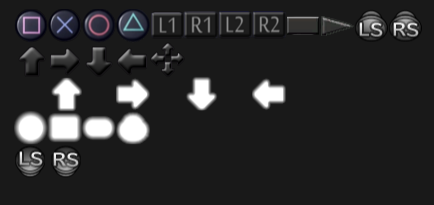 |
|
PS3 - by Continuity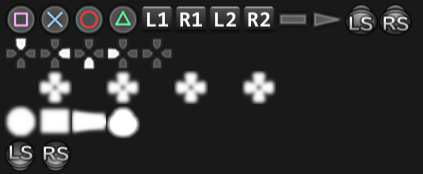 |
PS4 - by Continuity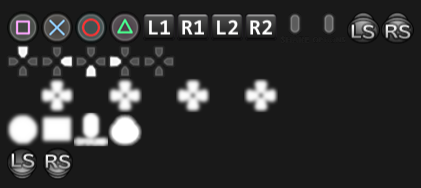 |
Xbox 360 - by Continuity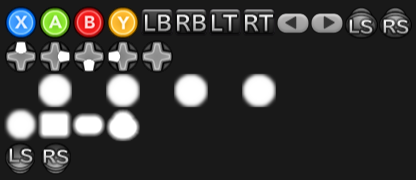 |
Xbox One - by Continuity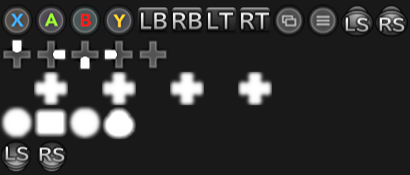 |
Gamepad Shortcuts
| Default Controller Combo | Description | |
|---|---|---|
| [Gamepad.PC] | UnX_Gamepad.ini |
|
| F1 | Select + × | Turbo Mode disables audio |
| F2 | Select + ○ | Supercharge |
| F3 | Select + □ | Encounter Rate |
| F4 | Select + L1 | Auto-Battle |
| F5 | Select + R1 | Hide HUD |
| SpeedBoost | Select + L2 + × | SpeedBoost 1x,2x,4x,8x Speed - FFX Only - Preserves audio 8x skips cutscenes! |
| ESC | Select + L2 + R2 | Open PC Menu |
| Fullscreen | L2 + L3 | Toggle Fullscreen |
| Kickstart | L1 + L2 + ↑ | KickStart Fix a stuck loading screen! |
| SoftReset | L1 + L2 + R1 + R2 + Start + Select | triggers a game over screen and returns you to the main menu. |
Keyboard Shortcuts
| Keybinding | Description | |
|---|---|---|
| [UNX.Keybinds] | UnX_Gamepad.ini |
|
| CycleSpeedBoost | Ctrl + ⇧ Shift + H | FFX Speedboost |
| ToggleTimeStop | Ctrl + ⇧ Shift + P | FFX Timestop Fun distraction during cutscenes |
| - | Ctrl + ⇧ Shift + Q | FFX Quicksave/Quickload DANGEROUS |
| ToggleFreeLook | Ctrl + ⇧ Shift + F | FFX Toggle Freelook Requires gamepad; uses left analog stick |
| ToggleFullPartySensor | Ctrl + ⇧ Shift + S | FFX Toggle Sensor Ability Without Equipment |
| ToggleFullPartyAP | Ctrl + ⇧ Shift + A | FFX Toggle Entire Party Earns AP |
| ToggleVSYNC | Ctrl + ⇧ Shift + V | Toggle VSYNC Only meaningful in fullscreen exclusive mode |
| KickStart | Ctrl + Alt + ⇧ Shift + K | Kick Start Fix a stuck loading screen! |
| SoftReset | Ctrl + ⇧ Shift + Delete | triggers a game over screen and returns you to the main menu. |
Boosters
| Options | Description | |
|---|---|---|
| [Boost.FFX] | UnX_Booster.ini |
only available for FF-X |
| EntirePartyEarnsAP | true|false | Grant AP to All Party Members even the ones not in combat This can be toggled while the game is running by pressing: Ctrl + ⇧ Shift + A |
| GrantPermanentSensor | true|false | Apply Sensor Ability Without Equipment This can be toggled while the game is running by pressing: Ctrl + ⇧ Shift + S |
Troubleshooting
VRR not working
if VRR (gsync/freesync/adaptive-sync) is not working in the game, try closing the game and then relaunching the game.
Also, ensure that VRR is enabled in the driver settings and/or enabled for the display. After ensuring that, and if VRR is still not working in the game even after closing/relaunching the game, place the mouse cursor on top of the resolution listed in the Special K control panel menu and see what is listed for Swap Effect. For VRR to work properly in windowed mode, Swap Effect here should say "Discard (Flip)"
Keep in mind that only nvidia gpu users would have a gsync status indicator that would say "Supported + Active" when VRR/gsync is detected as such.
UnX's Special K control panel menu does not have a freesync or adaptive sync indicator for AMD or Intel gpu users; however, you could also check if VRR is active by enabling and looking at the refresh rate overlay/indicator from your TV's or monitor's OSD settings if your display has this.
If you're seeing gsync status unsupported and/or keep seeing "Dicard (BitBlt)" for Swap Effect while in windowed/borderless mode, ensure that RehookLoadLibrary=true is set in the dxgi.ini and then close/relaunch the game again.
If gsync/VRR is still not working, disable the Nvidia in-game overlay from the Nvidia Geforce Experience app (or from the Nvidia app) if you had that enabled. The GFE/Nvidia in-game overlay is known to interfere with the flip model override (needed for better performance and for VRR to work etc) from the version of Special K that ships with UnX. If you didn't have the GFE/Nvidia in-game overlay enabled, another tool that's injecting into your game or something else that the PC is running may be causing a conflict.
Gamepad shortcuts not working
if the gamepad shortcuts are not working for you, ensure that you have UsesXInput=true in the UnX_Gamepad.ini
and if your gamepad shortcuts are still not working, you could try going in the dxgi.ini and setting this:
[Input.XInput]
Rehook=true
The gamepad shortcuts mainly work with Xbox/Xinput controllers. The game does have native support for Playstation controllers via Directinput, but the gamepad shortcuts may not work in that case...
If you're playing with a Dualshock 4, Dualsense, or Switch Pro controller... you could enable Steam Input for the game in the Steam client (right click the game --> Properties --> Controller --> Set the override to Enable Steam Input) to get gamepad shortcuts to work with the game.
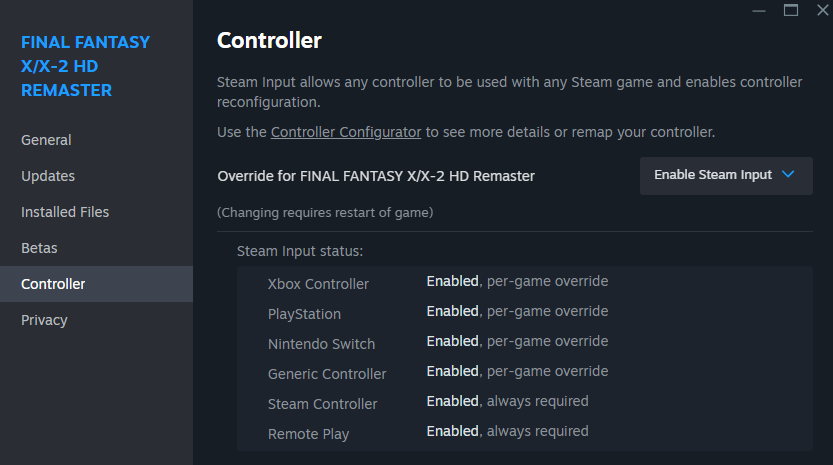
Alternatively, if you can't or don't want to use Steam Input for some reason, you could emulate an Xbox controller with DS4Windows (make sure your controller is set to xbox emulation in DS4windows's controller profile) or a similar tool. Also, if using DS4Windows, you may want to ensure that Steam Input is disabled for the game in the Steam client (right click the game --> Properties --> Controller --> Set the override to Disable Steam Input).
If Steam prompts you about the use of a remapping tool, just ignore and click past that prompt; or you could rename your DS4Windows.exe to DS4W.exe to prevent the Steam prompt (about the use of a remapping tool) from showing up.
Gamepad input not working
if you're not getting controller input at all, try with Steam Input enabled for the game in the Steam client (right click the game --> Properties --> Controller --> Set the override to Enable Steam Input).
Alternatively, if you can't or don't want to use Steam Input for some reason, you could emulate an Xbox controller with DS4Windows (make sure your controller is set to xbox emulation in DS4windows's controller profile) or a similar tool. Also, if using DS4Windows, you may want to ensure that Steam Input is disabled for the game in the Steam client (right click the game --> Properties --> Controller --> Set the override to Disable Steam Input).
If Steam prompts you about the use of a remapping tool, just ignore and click past that prompt; or you could rename your DS4Windows.exe to DS4W.exe to prevent the Steam prompt (about the use of a remapping tool) from showing up.
Fullscreen Exclusive Mode
If you want to get Fullscreen Exclusive working in this game, you must disable Flip mode:
in the dxgi.ini set:
[Render.DXGI]
UseFlipDiscard=false
and then in the unx.ini set:
[UnX.Display]
EnableFullscreen=true
you may also have to hit Alt + Enter after launching the game to trigger a display mode change to finally get Fullscreen Exclusive
and/or in the dxgi.ini set:
[Display.Output]
ForceFullscreen=true
However, keep in mind that Borderless with Flip mode can perform as good or better than Fullscreen Exclusive.
Freezing during combat
Having UnX's x8 speed boost enabled when entering combat may softlock the game or effective cause it to freeze.
Problematic Xinput software detected...

If you get a Special K warning mentioning "Problematic Xinput sofware..." and/or the game is crashing soon after launching it while having a gamepad connnected, you can try restarting the Steam Client or closing other software for gamepads you have running if any.
You could also disable rumble for the game by setting the following in UnX's/SK's dxgi.ini (inside the game's folder):
[Input.Gamepad]
DisableRumble=true
OR, alternatively, just set this (which won't disable rumble) in the dxgi.ini:
[Input.XInput]
Enable=false
With [Input.XInput]Enable=false set in the dxgi.ini, you won't be able to open UnX/SK's control panel while in-game with the gamepad's select + start buttons anymore (but you could still open UnX/SK's control panel using Ctrl + ⇧ Shift + ← Backspace with a keyboard).
Also, with [Input.XInput]Enable=false set in the dxgi.ini, UnX gamepad shortcuts won't work anymore with an xbox controller — the gamepad shortcuts mentioned in this section: https://wiki.special-k.info/SpecialK/Custom/UnX#gamepad-shortcuts
but the game shouldn't crash anymore and shouldn't give the "Problematic Xinput software detected..." message anymore...
If the game is still crashing after setting [Input.Gamepad]DisableRumble=true or [Input.XInput]Enable=false in the dxgi.ini, then you may have something else running causing a conflict with UnX/SK...
Incompatible Software
Dxtory
- This software immediately disables most mods once it starts
Do not use this software!
FRAPS
-
FRAPS disables most of UnX's features
- If you need an alternative framerate counter use RivaTuner Statistics Server.
- If you need an alternative video capture solution, anything other than Dxtory should work...
MSI Nahimic and Razer ...
- The game is known to freeze at startup in some versions of Nahimic
- Most (all?) of Razer's game enhancing software is incompatible
RivaTuner Statistics Server
- Avoid running this with "Custom Direct3D Support" enabled.
- If you want to use RTSS + UnX/SK, you may need to try with the "Use Microsoft Detours API hooking" setting checked in RTSS's properties/setup (in RTSS under setup --> general). This may allow RTSS + UnX/SK to show up and work fine together in the game.
There could be some other software/tool running in your PC that's causing a conflict with SK/UNX. You may need to start by disabling third-party software one by one until things work correctly.
Steam Guide (Legacy)
You can view a backup of the original Steam guide here: "Untitled" Project X