Common Issues
You've got problems?! We've (hopefully) got solutions!
The following is a collection of common issues that might occur when using Special K. If your issue is not listed and you don't manage to solve it on your own, feel free to request help on Discord.
General issues
Incompatibility with Nvidia Streamline
See the Streamline compatibility page for all information available on how to solve this issue.
Missing the June 2010 DirectX Runetime
Please install the following package: DirectX End-User Runtime
Flashing widgets or constant screenshot capturing in Frostbite 3 games
All games utilizing the Frostbite 3 engine will experiencing flashing widgets and constant screenshot capturing. There is currently no known solution to this issue.
Apply the "sledgehammer" config
The following config can be used in scenarions where using Special K causes weird compatibility issues.
The config disables the following features of Special K:
- Steam Enhancements
- Special K's use of various gamepad related input APIs
- The custom Alt+F4 handler
- Texture caching in Direct3D 11 (DirectX 11) games
[SpecialK.System]
ShowEULA=false
GlobalInjectDelay=0.0

[API.Hook]
d3d9=true
d3d9ex=true
d3d11=true
OpenGL=true
d3d12=true
Vulkan=true

[Steam.Log]
Silent=true

[Input.libScePad]
Enable=false

[Input.XInput]
Enable=false
UISlot=4
EnableEmulation=false

[Input.Gamepad]
EnableDirectInput7=false
EnableDirectInput8=false
EnableHID=false
EnableNativePS4=false
EnableRawInput=true
AllowHapticUI=false
EnableWindowsGamingInput=false

[Input.Keyboard]
CatchAltF4=false
BypassAltF4Handler=false

[Textures.D3D11]
Cache=false
Visual issues
Jumbled or overly bright in-game text
This is typically caused by an incompatibility with the texture cache of Special K.
- Launch the game with Special K enabled.
- Press Ctrl+⇧ Shift+← Backspace to open the control panel of Special K.
- Expand Direct3D 11 Settings section and the Texture Management subsection.
- Enable
Ignore Textures Without Mipmaps. - Restart the game to confirm everything works.
- If the issue still occurs, disable the texture cache entirely by unchecking
Enable Texture Cachingin the same section and then restart the game.
- If the issue still occurs, disable the texture cache entirely by unchecking
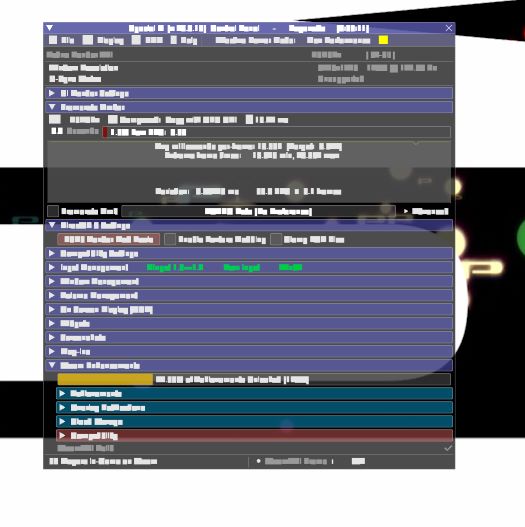
Letters appear as white blocks
This is a common issue for 32-bit D3D9 games when injecting Special K and is often caused by the game running out of VRAM due to the executable not having the Large Address Aware (LAA; aka 4 GB) flag applied to it.
Special K has a built-in option to apply the LAA flag on the executable, though as the option can be hard to use due to the visual issue, it is recommended to use a separate tool such as the 4GB Patch or Large Address Aware patcher.
Misc visual issues
Special K v21.07.07 enabled flip model promotion for D3D11 titles by default. While this is generally widely compatible, it may result in weird visual issues in some titles and needs to be disabled by opening the game-specific config and change UseFlipDiscard to false).
Here's a list of games known to experience issues with flip model override
| Game | Issues |
|---|---|
| Crysis 3 | Black image |
| ReCore | Bugged pause menu with infinite frames flipping — the higher the back buffer count the more frames gets repeated infinitely |
| Metro 2033 Redux | Missing geometry (disable tessellation to fix) |
| Metro: Last Light Redux | Missing geometry (disable tessellation to fix) |
| Titanfall 2 | Black image |
| UNO by Ubisoft | Blue image |
Framerate issues
Less than 1 FPS in some Unreal Engine 3 games
Update to a version of Special K dated March 2021 (21.03.xx) or newer.
If you are already on a newer version, please restart the game as it sometimes only occurs with an empty/reset game profile.
Game crashes
The following section contains known issues related to crashes of various kinds.
Game crashes with Special K injected
Crashes occurs most commonly at the launch of a game, and is usually caused by conflict(s) with other running third-party tool(s) or application(s).
Note that the crash handler of Special K is capable of capturing data for crashes that occurred unrelated to the mod itself.
- Temporarily disable/remove Special K from the game (either disable global injection or rename the local
<DLL-name>.dll) and see if the issue reoccurs. If it does then the crash was unrelated to Special K and there is no reason to troubleshoot further using the below instructions. - Disable any compatibility flag/mode that might be applied on the game in Windows.
- This is of particular note for DirectX 9 based games where using
Disable fullscreen optimizationscombined with Special K installed asd3d9.dllwill often end up silently crashing the game on launch.
- This is of particular note for DirectX 9 based games where using
- Browse to the game-specific logs.
- Consult the
crash.log,SpecialK.log/<DLL-name>.logand themodules.logto find more information related to the crash.- Does
crash.logindicate that the crash was related to a Special K related function (SK_*)?- If a Special K related function were involved then it could be a bug in Special K itself.
- If no Special K related function was involved then it is possible the game crashed completely independent of Special K.
- Does
modules.logindicate that non-Special K, non-Windows, non-driver, non-game, and non-Steam (or other platforms) related DLLs were injected into the game?C:\Windows\system32\*.dlltypically indicates a DLL file related to either Windows or a display drivers. These can typically be ignored , however do note thatapphelp.dll,AcLayers.dll, orAcGenral.dllindicates that the application compatibility engine of Windows is influencing the game in some way, which can cause conflicts for Special K as well.<path-to-game>\*.dllare safe to ignore, unless using other non-Special K related third-party mods located in the game folder which can cause conflicts as well.- Other locations (such as inside the Program Files folder(s)) indicates the presence of a third-party DLL file that might be causing the conflict.
- Does
SpecialK.log/<DLL-name>.loglist additional third-party DLL files injected into the game that matches the list of things to look out for? Or does the log file indicate that the crash seemingly occurred at a specific point (i.e. what is the last thing logged)?
- Does
- Use the name of the DLL file(s) found in the previous step, their path, and/or an online search engine to locate what application or tool the DLL file is related to. Then proceed to exit/disable those applications/tools one by one until either the issue is fixed, or all of the third-party DLL files are excluded from the new logs that are generated from Special K.
- When all third-party DLL files have been excluded, various Special K components and modules can be disabled for troubleshooting purposes. Start by opening the game-specific config.
- General:
- Disable Steam enhancements by changing the parameter
Silentto true in the the Steam.Log section. - Disable all unrelated render API hooks by changing
<API>to false in the the API.Hook section. - Disable all unused input API hooks.
- Disable Steam enhancements by changing the parameter
- DirectX 11 related:
- Disable the texture cache by changing the parameter
Cacheto false in the the Textures.D3D11 section. - Disable the hooks cache by setting
EnableGlobalCacheandEnableLocalCacheto false in the the D3D11.Hooks and DXGI.Hooks sections. Also remove all existing hooks in those sections (basically everything else beneath both sections).
- Disable the texture cache by changing the parameter
- General:
- If the above did not solve the issue, upload the latest logs to a thread or reply over on the Special K Forums and request further help from the community.
An Alert (!) sound plays when the game crashes
The crash handler of Special K plays the iconic Alert (!) sound from Metal Gear Solid if it managed to capture data related to a crash.
- This does not mean that Special K was involved in the crash; it just means a crash occurred and Special K was able to capture data related to it.
Troubleshoot according to the above Game crashes with Special K injected section.
PSA: BitDefender users
Special K is incompatible with the Advanced Threat Defense module of BitDefender, and games will silently crash when attempting to use Special K with them. Please whitelist the game executable, Special K's DLL files, and possibly also SKIF/SKIM in the ATD module of BitDefender to work around the issue.
Controller issues
Controller does not work properly
Some games might experience an issue where having Special K injected prevents controllers from working properly. This can apply to any type of controllers, from regular gamepads, steering wheels, arcade sticks, etc.
Disable the use of the relevant input API(s) in Special K to work around the issue. This will only affect Special K's input related functionality, and not the game.
Problematic XInput software detected
Problematic XInput software detected (infinite haptic feedback loop)
Special K throws a warning if it detects a circular dependency issue involving different versions of XInput.
-
Restart all applications drawing an overlay (e.g. Steam, Origin, Uplay) and/or disable said overlays.
-
Disable the use of XInput in Special K (does not affect the game):
- Open the game-specific config.
- Find the [Input.XInput] section and add a new line below that says
Enable=false:
[Input.XInput] Enable=false Rehook=false PlaceholderMask=0 UISlot=0 SlotReassignment=0,1,2,3- Save and close the file.
Global injection issues
Special K autostarts with Windows
The autostarting feature is typically installed through SKIF or SKIM. See the relevant Disable autostart with Windows section over on the Tools page on how to disable the autostart feature for either.
Special K gets injected into unexpected games
Special K being injected into unexpected games is an indication that the global injector is running on the system and have registered a hook in Windows. Do the following to disable or stop the injection:
-
First determine whether you have installed/started the global injector using Special K Injection Frontend (SKIF) or Special K Install Manager (SKIM). Tools have screenshots of both available that you can use to identify the likely culprit.
-
Next follow the appropriate instructions for the likely culprit.
Tabs
Special K Injection Frontend (SKIF)
-
Launch Special K Injection Frontend (SKIF).
- The app can typically be found in the start menu as Special K.
- Or in its install folder.
- Or maybe even in the Steam Library if you were one of the few who got access to the application while it was featured on Steam! 😲
-
Click on [Stop Service] to stop the global injector.
-
Close SKIF again — the issue should hopefully now be resolved. If it is not, follow the next instructions below.
Special K Install Manager (SKIM)
-
Launch SKIM.
- SKIM can typically be found in
%USERPROFILE%\Documents\My Mods\SpecialKor in the start menu as SKIM in the Special K folder.
- SKIM can typically be found in
-
Click on [Stop Injecting] to stop the global injector.
-
Close SKIM again — the issue should hopefully now be resolved. If it is not, follow the next instructions below.
-
If you still experience the issue do the following:
- Open the Task Manager of Windows and navigate to the Details tab.
- Right-click on the column headers and click on Select columns and enable the Command line column header.
- Look through the process list and see if there are any
rundll32.exeprocesses that references the Special K DLL files in the Command line column, e.g.[...]rundll32.exe [...] SpecialK32.dll,RunDLL_InjectionManager Install
- If there are any applicable processes, select them one by one and click on [End Task] at the bottom of the window.
- Now check and see if there are still any
SKIMorSKIFprocesses running. If there are, end those as well. - Hopefully the issue is now resolved. If still isn't, check the next step as well.
-
Finally, the most obscure and nowadays basically never seen situation is one where references to Special K's DLL files remain in the AppInit_DLLs registry keys of Windows. This was the method that Special K back around 2016 made use of.
- Open the Registry Editor of Windows.
- Navigate to
HKLM\Software\Microsoft\Windows NT\CurrentVersion\Windowsand see if theAppInit_DLLsvalue (it's a comma-delimited string) includes a reference to Special K's DLL file. If it does, remove it from the value. - Next do the same under
HKLM\Software\WOW6432Node\Microsoft\Windows NT\CurrentVersion\Windows
Third-party conflicts
Conflicts with the Disable fullscreen optimizations flag
These are issues known to occur when combining Special K with the Disable fullscreen optimizations compatibility flag in Windows. Uncheck Disable fullscreen optimizations or (if possible) use another <DLL-name> for Special K to work around the issues. If you want to know more about these optimizations, please visit PCGamingWiki's chapter on the topic
-
Special K installed locally as
d3d9.dllcombined withDisable fullscreen optimizationscan prevent games from running. -
Special K installed locally as
dxgi.dllcombined withDisable fullscreen optimizationscan prevent the compatibility flag from having an effect — meaning the game will continue to use the new Fullscreen Optimizations (FSO) mode if the game is configured to run in Exclusive Fullscreen (FSE) mode.
Special K replaces GShade's DLL file
GShade makes use of symbolic links to set up local links in game folders (e.g. dxgi.dll) pointing to its source DLL file below C:\Program Files\GShade\ (e.g. GShade64.dll). The problem with these sorts of symbolic links is that if the user copies a file with the same filename (e.g. dxgi.dll) to the game folder and selects [Replace the file in the destination] when Windows prompts them about replacing or skipping the file that already exists, Windows will end up overwriting the original GShade file in the Program Files folder.
This means that if GShade is set up for a game and the user then performs a manual install of Special K's DLL file, Windows might end up replacing GShade's original file with Special K's DLL file — causing Special K to be injected into other games as well that GShade is set up for.
The solution to this issue is the following:
- Reinstall GShade to restore its original file.
- Remove GShade's symbolic link by uninstalling the game from GShade or by manually removing the symbolic link from the game folder.
- After the symbolic link have been removed it's safe to perform a local install of Special K.
Game Mode inverts base priority; Normal when focused/Above when unfocused
Update to a version of Special K dated May 2023 (23.05.xx) or newer.
Original description (only affects older copies of Special K and third-party software):
When using certain configurations of Special K along with Game Mode enabled, a scenario can occur where the game ends up having Normal base priority when it has focus, and Above Normal when it is unfocused. This is due to how both Special K and Game Mode changes the base priority of the game when focus is gained/lost, and how they determine what priority to set.
-
Game Mode always changes the game process to
Normalpriority when it gains focus. The original priority is retained and restored for the process when the game loses focus. -
Special K only changes priority if Special K itself changed it previously to something else — meaning Special K is not actually aware of changes made by third-party applications, nor does it periodically check what the priority is currently set to. Special K assumes that what it changed the priority to still applies.
-
Game Mode's changes to the base priority are applied before Special K's changes, meaning any change applied by Special K is the one that ultimately remains (provided Special K actually makes a change, that is).
The situation occurs in scenarios where Special K is supposed to use Above Normal for the game when it is both focused and unfocused. By default this does not occur as instead Special K lowers the priority to Normal when the game loses focus, which works alongside Game Mode's behaviour flawlessly and means the game has Above Normal when it has focus and Normal when not; both set last by Special K.
Any of the following Special K configurations can cause an inverse prioritization to occur:
AlwaysOnTop=2(aka the Multitasking-On-Top feature)AlwaysRaisePriority=trueRaisePriorityInForeground=truecombined withRaisePriorityInBackground=trueandRenderInBackground=true(Continue Rendering)
Using any of the above configurations will cause Special K to assume Above Normal is meant to be used for both focused and unfocused states of the game, meaning after Special K changed the base priority the first time it will no longer change the priority again since it assumes what was set last still applies.
This allows Game Mode's behaviour to now act unopposed, and when the game is focused Game Mode changed the priority to Normal as per its design, while when the game loses focus Game Mode restores the original base priority which in this case would be Above Normal as that was what Special K last set it to.
The solution is to disable the mentioned parameters above to ensure Special K does lower the base priority when the game loses focus, which allows it to similarly re-apply the desired Above Normal base priority when it regains focus.